Fix
Why text cuts vertical or sideways on a vinyl cutter
Published
Short answer
A vinyl cutter cuts along the roll: the length of the vinyl is one axis and the width across the rollers is the other. If your software's page is set to portrait when the cutter expects landscape, or a rotate option is on, text comes out vertical. Match the page orientation to how the vinyl feeds, turn off any auto rotate, check the origin setting, and cut a small test word before the full job.
Gear for this job
All 6 picks compared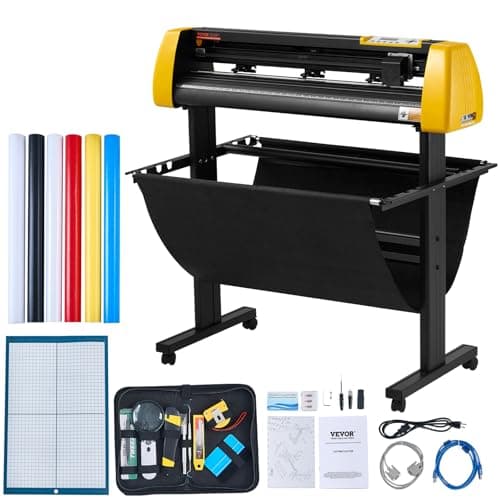
VEVOR 34 in with camera contour cutting and stand
See price on AmazonSee it on Amazon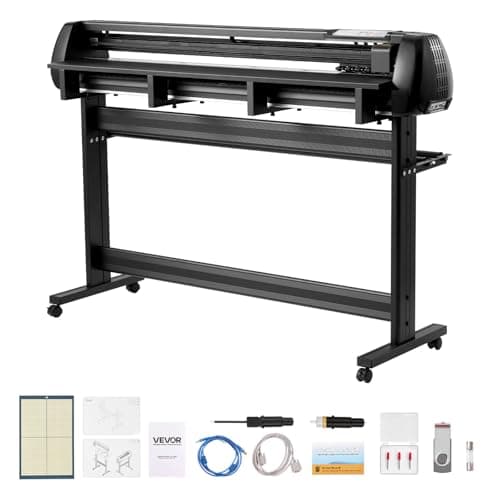
VEVOR 53 in dual-blade plotter with Mac support
See price on AmazonSee it on Amazon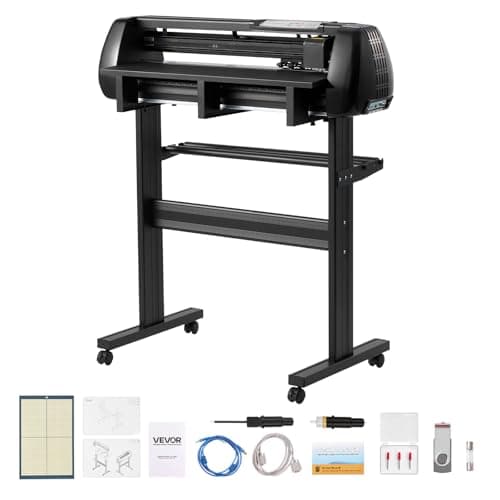
VEVOR 28 in dual-blade plotter with Mac support
See price on AmazonSee it on Amazon
You lay out a word across the screen, send it to the cutter, and it comes out running down the vinyl instead of across it. This is one of the most common problems with roll-fed plotters and comes from a mismatch between how the software lays out the page and how the machine feeds the roll. This page is for owners of Vevor, USCutter and similar plotters, and for Cricut and Silhouette users who see rotated cuts. It explains why it happens and walks through the settings to check in order. Menu names vary between programs, so the steps describe what to look for rather than exact menu paths.
Why designs come out rotated
A roll-fed cutter has two axes. The rollers move the vinyl back and forth along its length, and the carriage moves the blade across the width. The software's page has to be mapped onto these axes. Some programs treat the roll width as the page height, others as the page width. When the program and the cutter disagree, everything is turned 90 degrees.
It is not a fault in the cutter. The design is cut correctly, just in a different orientation. Fixing the setting once usually fixes it for good.
| Cause | Where to look | Fix |
|---|---|---|
| Page orientation mismatch | Page setup or cut dialog in the cutting software | Switch between portrait and landscape to match the roll |
| Rotate or auto rotate turned on | Cut or send dialog | Turn off rotate, or set rotation to 0 |
| Driver orientation | Printer style driver properties on Windows | Set orientation to match the software |
| Origin set to a different corner | Plotter menu or software | Set the origin the software expects |
| Design laid out wider than the roll | Layout | Some programs rotate designs to fit; resize or use a wider roll |
Step 1: set page orientation to match the roll
In your cutting software, open the page or media setup. Set the width to the usable width of the vinyl across the rollers and the length to how much you will feed. Then check the orientation. If your text is horizontal on screen but cuts vertical, switch from portrait to landscape or the reverse, send a short test word, and see which way it comes out.
Many sign programs, including SignMaster, VinylMaster and Sure Cuts A Lot, show a preview in the cut dialog that represents the vinyl as it feeds. If the design looks rotated in that preview, it will cut rotated. Fix it there before sending.
Step 2: turn off rotate and auto rotate
Cut dialogs often have a Rotate, Rotate 90 or Auto rotate option, sometimes meant to save vinyl by turning long designs to run along the roll. That is useful for long banners, but it confuses people when it is on by default. Turn it off or set rotation to zero, then cut a test.
In Silhouette Studio, check the page orientation in the Page Setup panel and the rotate view option, which changes how the page appears on screen. In Cricut Design Space, items may be placed differently on the mat preview; you can rotate them on the Prepare screen before cutting.
Step 3: check the driver and origin
Some cutters are controlled through a Windows printer driver, especially when you cut from a design program through a plug-in. That driver has its own orientation setting. If it says portrait while the software sends landscape, the result is rotated. Open the printer properties for the cutter and match the orientation.
The origin is the corner the cutter treats as zero. Most roll-fed plotters set it at the blade's current position when you press the origin key, and cut from there. If the software expects a different corner, the design can be rotated or mirrored. Check the origin options in both the plotter's menu and the software, and keep them consistent. Our Vevor vinyl cutter setup guide walks through origin and roller setup on common budget plotters.
Step 4: test with a small word
- 1
Type a short word, such as TEST, about one inch tall.
- 2
Place the origin at the edge of the vinyl and send the cut.
- 3
Look at the result against the direction the vinyl feeds. Note whether it came out rotated, mirrored or correct.
- 4
Change one setting (orientation, rotate, driver, or origin), then cut the word again.
- 5
Once it cuts correctly, save the settings as a preset or default in your software.
Note.Mirroring is a different problem. Heat transfer vinyl must be mirrored on purpose; adhesive vinyl must not. Check both before sending.
If the design is wider than the roll
Some programs automatically rotate a design if it does not fit the roll width the other way. A sign two feet long and four inches tall fits on a narrow roll only if it runs along the roll. If the software turns it to fit, that is expected. To control it, set the design size and the media size yourself and turn off auto rotate.
If you often cut long or wide graphics, a wider cutter saves time. See our guides to the best large format vinyl cutters and the best Vevor vinyl cutters for sizes, and cutting machine cut size chart for the limits of common machines.
Related problems
If the cutter cuts in the right direction but shallow or ragged, adjust blade exposure and force; see how to adjust a vinyl cutter blade. If the software will not send anything to the cutter, check the port and driver settings, and see free vinyl cutter software for programs that support common plotters. If artwork will not import, see vinyl cutter file formats.
Frequently asked questions
Why is my text vertical on my vinyl cutter? The software's page orientation does not match how the cutter feeds the roll, or a rotate option is on. Switch portrait and landscape in the page or cut setup, turn off auto rotate, and test with a short word.
Is my vinyl cutter broken if it cuts sideways? No. It is cutting the design correctly but in a rotated orientation because of a setting. Fixing orientation, rotate or origin settings solves it.
Why does my design come out backward instead of sideways? That is mirroring, not rotation. Turn mirroring off for adhesive vinyl and on for heat transfer vinyl.
Does Cricut or Silhouette have the same problem? Less often, because they cut on a mat. When it happens, check the mat preview in Design Space or the page setup and rotate view in Silhouette Studio.