How-to
How to cut basswood and chipboard with a Cricut
Published
Short answer
Only the Cricut Maker family can cut wood, using the Knife Blade in the Adaptive Tool System. Choose the exact basswood, balsa or chipboard material in Design Space, tape the material to a StrongGrip mat on all four sides, slide the white star wheels to the right and let every pass run. Check the cut before you unload the mat, and add a pass if any piece is still attached.
Gear for this job
All 6 picks compared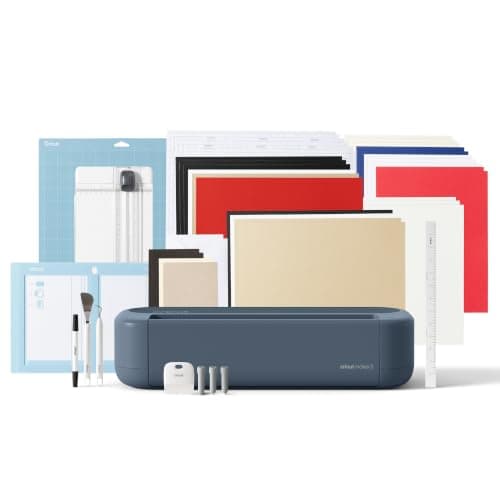
Cricut Maker 5: cuts and engraves up to 3 mm
See price on AmazonSee it on Amazon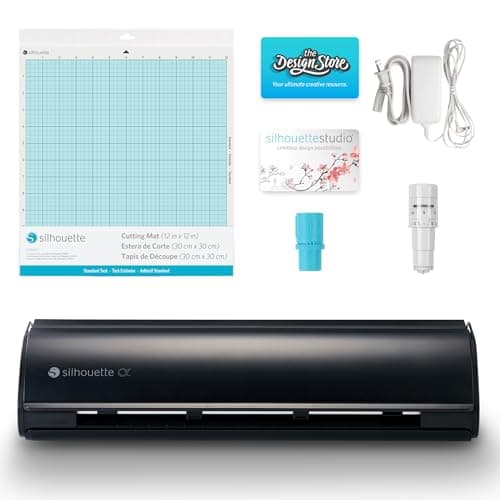
Silhouette Cameo 5 Alpha: materials up to 3 mm
See price on AmazonSee it on Amazon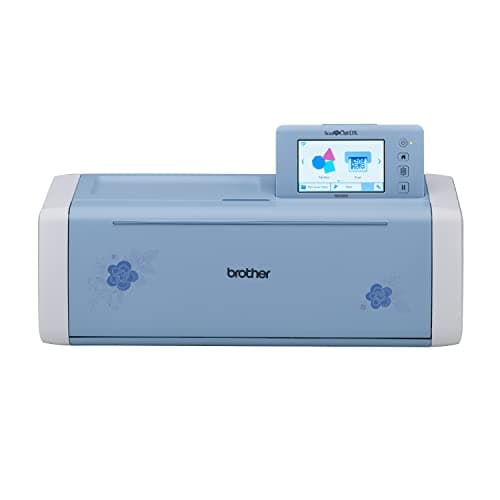
Brother SDX325: 3 mm with blade sensor
See price on AmazonSee it on Amazon
Basswood ornaments, chipboard layered signs and balsa models are some of the most satisfying things a Cricut Maker can make, but they are also the slowest and least forgiving cuts. The Knife Blade cuts in many light passes, and a single shift of the material ruins the job. This page is for Maker owners trying wood or chipboard for the first time. It covers which machines and blades work, how thick you can go, how to prepare the mat, design tips that make cuts succeed, and how to check the cut before you unload.
Which Cricut can cut wood
The Knife Blade needs the Adaptive Tool System, which only the Cricut Maker family has. Explore and Joy machines cannot drive it. An Explore with the deep point blade can cut thin items such as stiffened felt, magnet sheet and heavy card, but not basswood or 2 mm chipboard.
Cricut rates the Knife Blade for dense materials up to 2.4 mm (3/32 in) thick. Cricut lists basswood at 1/32 and 1/16 inch and balsa up to 3/32 inch, and recommends the Knife Blade for its own 2 mm chipboard. Thicker wood is a job for a scroll saw or a laser, see Cricut vs laser cutter.
| Material | Thickness Cricut lists | Blade | Mat |
|---|---|---|---|
| Basswood | 1/32 in and 1/16 in | Knife Blade | StrongGrip, taped |
| Balsa | Up to 3/32 in | Knife Blade | StrongGrip, taped |
| Chipboard | 2 mm | Knife Blade | StrongGrip, taped |
| Tooling leather | Up to about 2.4 mm | Knife Blade | StrongGrip, taped |
Before you start: design tips
Wood has grain and chipboard has layers, so small pieces split more easily than in card. If you are unsure, cut a small sample of your design on scrap first. Knife Blade jobs can take a long time, and a test piece tells you whether the details survive before you commit a full sheet.
- Keep pieces larger than about 3/4 inch where you can; tiny details often break or tear.
- Avoid thin lines and sharp inside corners; the Knife Blade needs room to turn.
- Use simple fonts with thick strokes for wood lettering.
- Leave a margin of at least an inch around the design from the edge of the wood.
- Place the design so the wood grain runs the long way through narrow parts.
Step by step: cutting basswood or chipboard
- 1
If the Knife Blade is new, calibrate it in Design Space first; the app prompts you the first time.
- 2
Build the design, click Make, and choose the exact material, such as Basswood 1/16 in or Chipboard 2 mm.
- 3
Place the material on a clean StrongGrip mat and press it down firmly.
- 4
Tape all four edges to the mat with masking or painter's tape, keeping tape out of the cut area.
- 5
Slide the white star wheels on the roller bar all the way to the right so they do not dent the material.
- 6
Install the Knife Blade in clamp B, load the mat and press Go.
- 7
Let every pass run. Design Space shows the number of passes and the estimated time.
- 8
When it finishes, do not unload. Check the cut first.
Note.Keep fingers away from the carriage while the machine runs, and handle the Knife Blade by its housing. The blade is exposed and very sharp.
Check the cut before you unload
Look at the cut lines and gently press a piece with your finger or a weeding tool. If pieces lift free, unload the mat. If any piece is still attached, Design Space offers an option to add another pass while the mat is still loaded in the same position. Use it. Once you unload, you cannot line the mat back up precisely.
Free the pieces from the back by flexing the mat away from the wood, and use a craft knife to finish any thin spots that held. Light sanding cleans fuzzy basswood edges. Chipboard edges can be sealed with paint or glue if they will be handled often.
Common problems and fixes
For a full calibration walkthrough, see how to calibrate a Cricut Maker. If the Maker will not pull the mat in, Cricut Maker roller not feeding covers that. For other materials, the cut settings chart lists the blade and mat for each.
| Problem | Likely cause | Fix |
|---|---|---|
| Material shifted mid cut | Not taped, mat lost grip | Tape all four edges, use a fresh StrongGrip mat |
| Dents or roller tracks | Star wheels not moved | Slide star wheels fully right before loading |
| Pieces still attached | Not enough passes or worn blade | Add a pass before unloading; check the blade tip |
| Small parts torn or broken | Details too fine for the material | Enlarge the design or simplify thin parts |
| Cut lines out of line on later passes | Blade not calibrated | Run Knife Blade calibration in Design Space |
Is a Cricut the right tool for wood?
For thin craft wood, layered chipboard signs, ornaments and model parts, a Cricut Maker does the job well. For thicker hardwood, fast production or engraving, a laser cutter or saw is the better tool. If thick materials are your main project, our guide to cutting machines for wood, leather and chipboard compares the Maker with other options, and the Cricut machine guide explains the differences between Maker models.
Frequently asked questions
Can a Cricut Explore cut wood? No. Wood and 2 mm chipboard need the Knife Blade, which runs only on the Cricut Maker family. An Explore with the deep point blade handles thinner items such as heavy card and magnet sheet.
How thick of wood can a Cricut Maker cut? Cricut rates the Knife Blade for materials up to 2.4 mm (3/32 in). Cricut lists basswood at 1/32 and 1/16 inch and balsa up to 3/32 inch.
Why does the Knife Blade take so long? It cuts in many light passes rather than one deep one, which keeps the cut clean and protects the machine. Thick chipboard or a detailed design can take a long time.
Do I need to tape the material if I use a new StrongGrip mat? Yes. Cricut recommends taping dense materials because the many passes can shift even well-stuck material.
What you need for this
- See price on AmazonAmazon
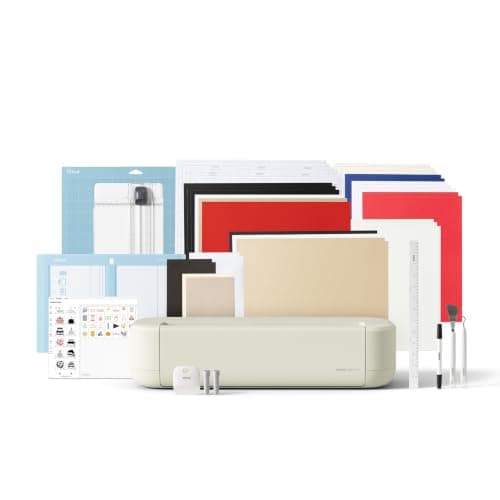
Cricut Maker 5 Essential Bundle with Scoring Tool
 See price on AmazonAmazon
Cricut Explore 5: scores and writes, 12 in width
From Best Cricut machines, from Joy 2 and Joy Xtra to Maker 5
 See price on AmazonAmazon
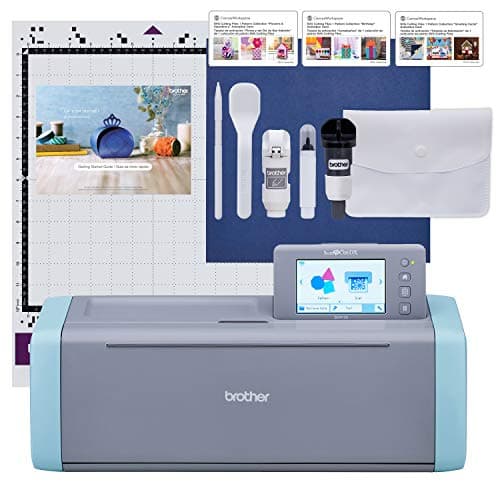
Brother ScanNCut SDX125E: built-in scanner, 3 mm cutting
From Best Cricut Maker alternatives from Brother, Silhouette and Siser