Fix
Cricut Maker roller problems and mat not feeding
Published
Short answer
Most Cricut Maker feeding problems come from the mat, not the roller. Check that the mat size in Design Space matches the mat you loaded, the mat sits under both guides and touches the rollers, and the mat is not curled or worn. Clean the rubber rollers, slide the white star wheels into position for your material, and only contact Cricut if a clean mat still will not feed straight.
Gear for this job
All 7 picks compared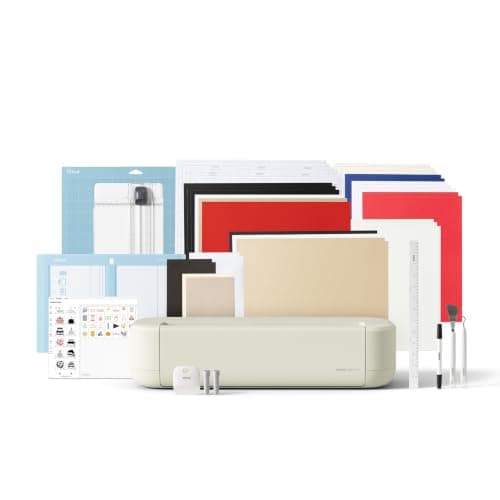
Cricut Explore 5: 12 in cutting for vinyl and cards
See price on AmazonSee it on Amazon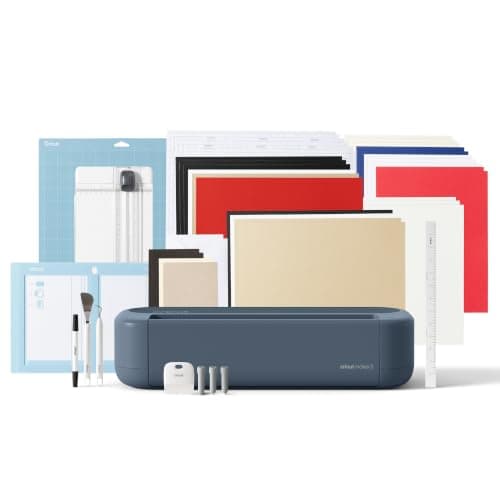
Cricut Maker 5: 3 mm materials and 13 tools
See price on AmazonSee it on Amazon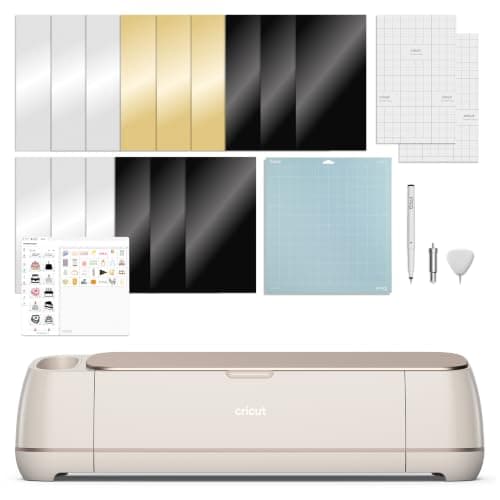
Cricut Maker 4: 300+ materials including leather and wood
See price on AmazonSee it on Amazon
The Cricut Maker pulls the mat in and out with a roller bar that has rubber rollers and white star wheels. When the mat will not load, slips, feeds at an angle or the machine pushes it straight back out, it looks like a roller fault. Often it is something simpler: the wrong mat size selected, a mat that is not under the guides, a curled mat, or dirty rollers. This page is for Maker and Maker 3 owners. It explains the parts, goes through the fixes in order, and covers when the roller bar needs Cricut's help.
How the Maker feeds the mat
When you press the Load button, the motor turns the roller bar. Rubber rollers near each end grip the edges of the mat and pull it into the machine. The white star wheels sit along the roller bar and press the mat down so it stays flat. The mat must sit under the plastic mat guides on each side so the rollers catch both edges evenly.
If one side grips harder than the other, the mat feeds at an angle. If neither grips, the mat does not load or slips during the cut. If the machine expects a longer or shorter mat than the one loaded, it may load and immediately unload or cut in the wrong place.
Symptoms and likely causes
| Symptom | Likely cause | Fix |
|---|---|---|
| Mat will not load | Mat not touching the rollers or not under guides | Reposition and push gently while pressing Load |
| Mat loads then ejects | Mat size in Design Space does not match | Select the right mat size on the Prepare screen |
| Mat feeds crooked | Mat not under both guides, or dirty roller | Align the mat, clean the rollers |
| Mat slips during a cut | Worn or curled mat, slick rollers | Flatten or replace the mat, clean rollers |
| Tracks on material | Star wheels rolling over it | Slide star wheels to the right |
| Grinding or clicking | Obstruction or roller bar fault | Clear the path, then contact Cricut |
Check the mat and the Design Space settings
On a Maker 3 using Smart Materials, choose the matless option and the right length in Design Space. Smart Materials also need to be cut straight and pushed squarely against the rollers. A trimmed or crooked edge can feed at an angle. Our which Cricut mat to use guide explains mat sizes and grips.
- 1
On the Prepare screen in Design Space, check the mat size: 12 x 12 in or 12 x 24 in must match what you loaded.
- 2
Line up the mat's left edge with the guides, slide it under both plastic guides and rest the leading edge against the rollers.
- 3
Hold the mat lightly in place and press the Load button. Do not push it hard into the machine.
- 4
If the mat is curled at the leading edge, flatten it by bending it gently the other way and storing it flat.
- 5
Try a different, flat mat. If that one feeds properly, the first mat is the problem.
Clean the rubber rollers and position the star wheels
Rubber rollers pick up adhesive, vinyl scraps and fabric lint over time. A coating makes them slippery and causes slipping or crooked feeding. Turn the machine off and unplug it. Wipe the rollers with a lint-free cloth lightly dampened with water, turning them by hand to reach all sides. Let them dry fully before use. Avoid harsh solvents, which can harden the rubber.
The star wheels are the white rings on the roller bar. For thick materials such as wood, chipboard or leather, slide them to the far right so they do not dent the surface. For thin materials they can sit over the material. If they are spread unevenly, they can press one side harder and pull the mat off line. Check also that nothing is stuck under them.
Note.Always turn the Maker off and unplug it before touching the rollers or the roller bar. Keep fingers away from the blade clamp.
When the roller bar itself is the problem
If a clean, flat mat that matches the Design Space size still slips or feeds crooked, look at the roller bar. Rubber rollers that are cracked, loose or have shifted along the bar, or a bar that wobbles, need service. You may also hear grinding or clicking if a gear or the bar is damaged.
Replacing the roller bar is not a routine owner repair on the Maker. Contact Cricut Member Care with the serial number and a short video of the problem. They can tell you whether a part, a repair or a replacement under warranty is the right route. Do not force the mat or pull it out by hand while the motor is engaged, which can damage the gears.
Prevent feeding problems
If you are cutting thick materials often, see how to cut wood with a Cricut and how to calibrate a Cricut Maker. If your Maker is out of warranty and the roller bar is worn, our best Cricut machine and Cricut Maker 4 vs Maker 3 pages compare replacements.
- Store mats flat with their clear covers on
- Replace mats when they lose grip or curl at the edges
- Keep the roller area free of vinyl scraps and lint
- Match the mat size in Design Space every time
- Use the star wheel position that suits your material
Frequently asked questions
Why is my Cricut Maker not loading the mat? The mat usually is not under both guides or is not touching the rollers when you press Load. Line it up, hold it lightly against the rollers and press Load again.
Why does my Maker push the mat straight back out? The mat size selected in Design Space does not match the mat you loaded, or the machine cannot find the mat edge. Check the mat size on the Prepare screen.
How do I clean the Cricut Maker rollers? Turn off and unplug the machine, then wipe the rubber rollers with a lint-free cloth lightly dampened with water. Let them dry before use.
Can I replace the Maker roller bar myself? It is not a routine owner repair. Contact Cricut Member Care for parts or service.
What you need for this
- See price on AmazonAmazon
Cricut Explore 5: scores and writes, 12 in width
From Best Cricut machines, from Joy 2 and Joy Xtra to Maker 5
 See price on AmazonAmazon
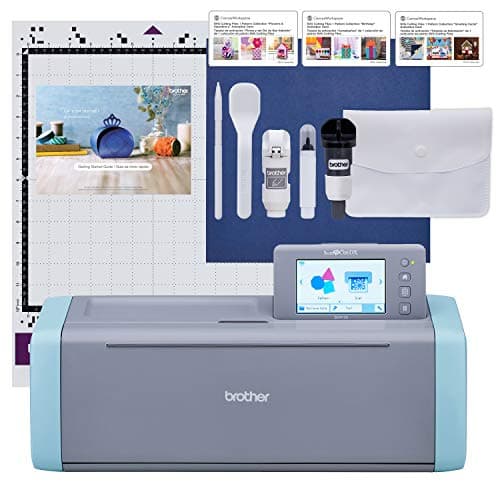
Brother ScanNCut SDX125E: built-in scanner, 3 mm cutting
From Best Cricut Maker alternatives from Brother, Silhouette and Siser
- See price on AmazonAmazon
Cricut Maker 5 Essential Bundle with Scoring Tool