Fix
Cricut Joy not loading or not cutting
Published
Short answer
A Cricut Joy loads only when Design Space asks for the mat, so start the cut on screen first, then slide the mat or Smart Material straight in under the guides. A flashing white light usually means the machine is waiting for you, a slow pulse means it needs activation, and red points to a firmware or power issue. If it loads but will not cut, check the material setting, the mat grip and the blade.
Gear for this job
All 7 picks compared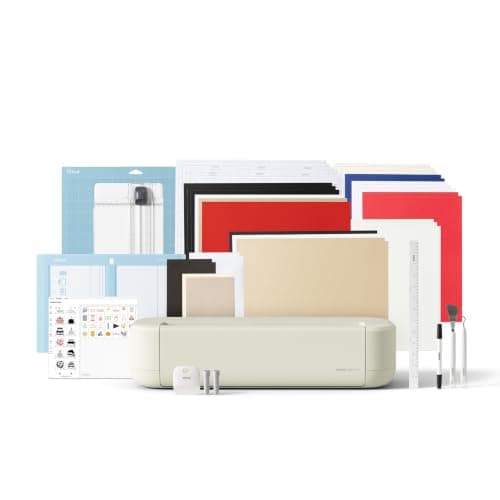
Cricut Explore 5: 12 in cutting for vinyl and cards
See price on AmazonSee it on Amazon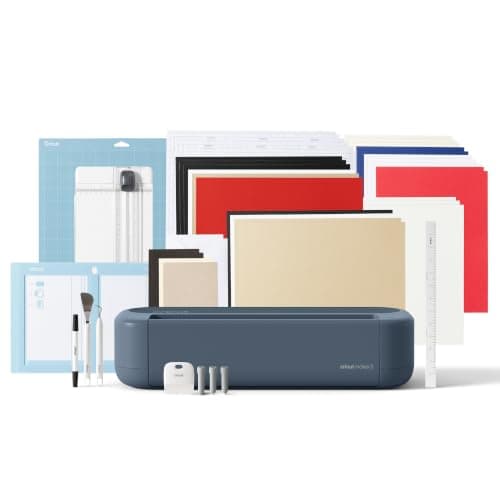
Cricut Maker 5: 3 mm materials and 13 tools
See price on AmazonSee it on Amazon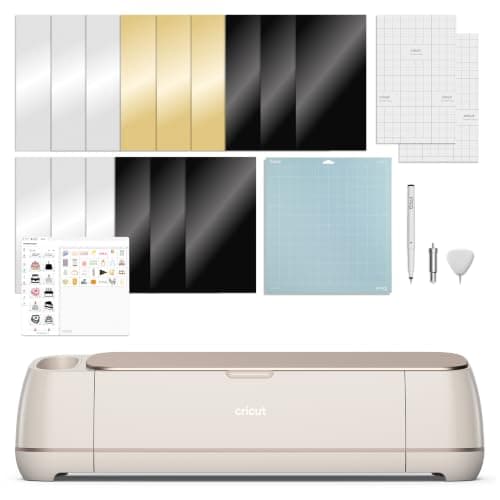
Cricut Maker 4: 300+ materials including leather and wood
See price on AmazonSee it on Amazon
The Cricut Joy and Joy Xtra have almost no buttons, so when something goes wrong, the power light and Design Space are your only clues. This page is for Joy and Joy Xtra owners whose machine will not take the mat, keeps ejecting Smart Materials, shows a flashing or colored light, or loads fine but leaves cuts incomplete. We explain what the lights generally mean, then go through loading, cutting and connection fixes in order. If you are not sure which Joy you have, see Cricut Joy vs Joy Xtra.
What the Cricut Joy light means
Cricut's help pages describe the Joy series status light like this. Solid white means the machine is on and ready. A slow pulse means it needs to be activated through Cricut's setup page. Flashing white means it is waiting for you to do something, such as load the mat or confirm in Design Space. A flashing color signals an error, with the message shown in Design Space.
A solid red light often means a firmware update is needed; run the update from Design Space. If the light is solid red and nothing else works, it can also point to a power problem, so try another outlet. A red light that blinks as soon as you power on, or during a firmware update, is a case for Cricut Member Care.
| Light | General meaning | What to do |
|---|---|---|
| Solid white | Ready | Start your project in Design Space |
| Slow pulse | Needs activation | Go to Cricut's setup page and activate |
| Flashing white | Waiting for you | Check Design Space for the next step, such as load mat |
| Flashing color | Error | Read the message in Design Space |
| Solid red | Firmware or power issue | Update firmware; try another outlet |
| Blinking red at power on | Fault | Contact Cricut Member Care |
Joy will not load the mat or Smart Material
Smart Materials must be the right width for the Joy and cut with a straight leading edge. A torn, curled or angled edge can make the machine reject the material or feed it crooked. Trim the edge straight with scissors or a paper trimmer. Material wider than the guides allow will not load at all.
Make sure the mat is a Joy mat, or a Joy Xtra mat on a Joy Xtra. Explore and Maker mats are too wide. Flatten a curled mat before loading, and replace mats that have lost their grip.
- 1
Start the project in Design Space and continue until the screen asks you to load the mat. The Joy does not have a load button; it waits for that prompt.
- 2
Choose the right load type: on a mat or without a mat for Smart Materials, and the correct length.
- 3
Hold the mat or material level and slide it straight in under the guides on both sides until the rollers catch it.
- 4
Do not push hard. Let the rollers pull it in.
- 5
If it ejects, take it out, check the edge is straight and square, and load again.
Joy loads but does not cut through
First check the material setting. Pick the exact material in Design Space, such as Smart Vinyl Permanent or Smart Iron-On, rather than a similar one. If you are cutting regular vinyl on a mat, choose the regular vinyl setting, not a Smart Material setting. Use the preset and run a small test cut. If the cut still does not go through, set the pressure to More for that material and try again.
Next check the blade. The Joy uses its own fine point blade. Lift it out, look for bits of vinyl or paper stuck in the housing, and clean it by poking the tip gently into a ball of aluminum foil. A blade that tears small details or needs extra pressure to cut thin vinyl may be dull. See Cricut blades explained.
Finally check the material itself. The Joy takes only its fine point blade, so thick items such as heavy chipboard, felt or wood are not supported and will not cut through no matter the setting. Our cut settings finder shows which materials the Joy can handle.
Note.Turn the Joy off before removing or inserting the blade, and handle the housing rather than the tip.
Connection and firmware problems
The Joy connects to Design Space by Bluetooth on most setups, and the Joy Xtra also works by Bluetooth. If Design Space cannot see the machine, turn the Joy off and on, check that Bluetooth is on and that the Joy is paired in your computer's or phone's Bluetooth settings, then select it in Design Space. Remove and re-pair the machine if it was paired before and now fails.
Keep Design Space updated. When it offers a firmware update, keep the device close to the Joy and do not close the app until it finishes. Our Cricut not connecting by Bluetooth guide covers pairing in more detail.
Cuts in the wrong place or crooked
If cuts land off the material, check that the material sits at the top left of the mat, matching the mat preview in Design Space, and that the mat size and length selected match what is loaded. With Smart Materials, choose a length at least as long as your design plus a little margin.
Crooked cuts usually mean the mat or material went in at an angle. Unload, line it up with both guides and load again. If problems persist on a known good mat and fresh material, see Cricut moves my design or contact Cricut Member Care. If the Joy has become too small for your projects, our best Cricut machine guide compares bigger models.
Frequently asked questions
Why will my Cricut Joy not load? It only loads when Design Space prompts you. Start the cut on screen, choose the right load type, then slide the mat or Smart Material straight in under the guides.
Why is my Cricut Joy light flashing white? It is usually waiting for an action from you. Check Design Space for the next step, such as loading the mat.
Why is my Cricut Joy not cutting all the way through? The material setting may be wrong, the blade may be dirty or dull, or the material may be too thick for the Joy. Pick the exact material, set pressure to More and test.
What does a red light on a Cricut Joy mean? Solid red often means a firmware update is needed or the machine is short on power. Blinking red at power on is a case for Cricut Member Care.
What you need for this
- See price on AmazonAmazon
Cricut Explore 5: scores and writes, 12 in width
From Best Cricut machines, from Joy 2 and Joy Xtra to Maker 5