Fix
Cricut not connecting: Bluetooth and USB fixes
Published
Short answer
Most Cricut connection problems clear with a full restart in the right order: close Design Space, power the machine off, turn Bluetooth off and on, then reopen Design Space and power the machine back on. If that fails, remove the Cricut from the device's Bluetooth list and pair it again (PIN 0000 on a computer), or connect with a USB cable to rule out Bluetooth entirely.
Gear for this job
All 7 picks compared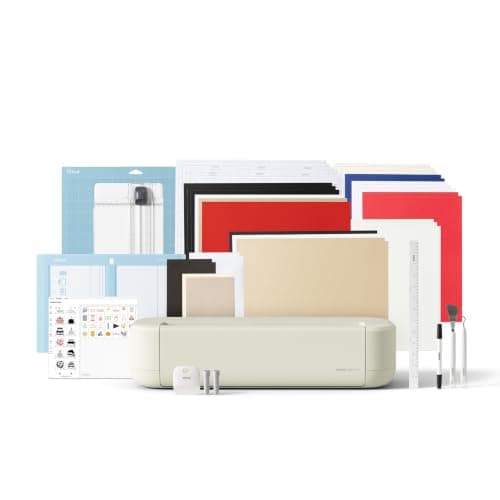
Cricut Explore 5: 12 in cutting for vinyl and cards
See price on AmazonSee it on Amazon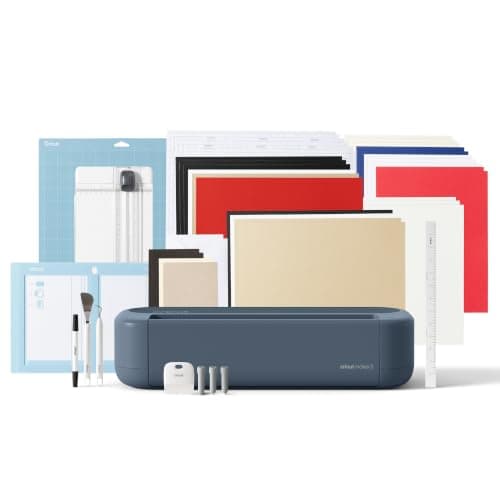
Cricut Maker 5: 3 mm materials and 13 tools
See price on AmazonSee it on Amazon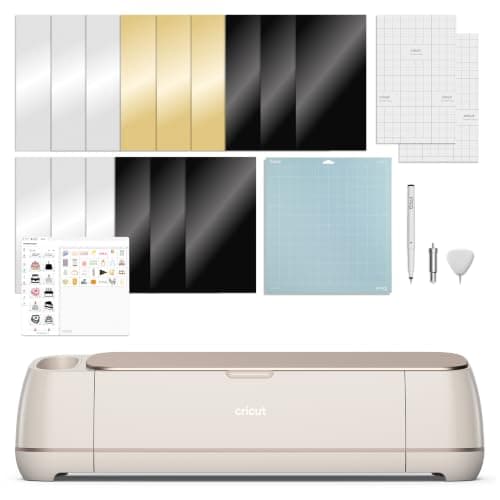
Cricut Maker 4: 300+ materials including leather and wood
See price on AmazonSee it on Amazon
This page is for Cricut Explore, Maker and Joy owners whose machine does not show up in Design Space, will not pair, or drops the connection in the middle of a cut. The fixes are in the order that solves the most cases for the least effort: restarts first, then pairing, then USB, then firmware and software. Each step says which machines it applies to. If the machine shows no lights at all, this is a power problem instead; see Explore Air 2 not turning on. For Joy specific issues, also see Cricut Joy not working.
Common causes at a glance
| Symptom | Likely cause | First fix |
|---|---|---|
| Machine not listed in Design Space | Bluetooth off, machine not paired, or app opened before machine | Restart in order, then pair again |
| Pairs but Design Space says not connected | Stale pairing or a second device holding the connection | Forget the device and re-pair; close Design Space on other devices |
| Disconnects mid-cut | Distance, interference, sleep settings, weak Bluetooth adapter | Move closer, use USB for long cuts |
| Not found over USB | Charge-only cable, hub, or driver issue | Use the original cable directly in the computer |
| Asks for firmware update that fails | Interrupted update or wrong connection | Update over USB on a computer |
Step 1: restart everything in the right order
A restart fixes a large share of connection problems because Design Space, the operating system and the machine can each hold an old connection state. The order matters: the app should be closed before the machine and Bluetooth are reset.
- 1
Close Design Space completely. On a phone, swipe it out of the app switcher. On a computer, quit it from the system tray or dock, not just the window.
- 2
Turn the Cricut off with the power button and wait about 30 seconds.
- 3
Turn Bluetooth off on the computer or phone, then back on. If it is a computer, a full reboot is even better.
- 4
Turn the Cricut on and wait until the power light is steady.
- 5
Open Design Space, start a project and go to the Make screen, then choose the machine from the connection menu.
Step 2: remove and pair the machine again
If the Cricut appears in the Bluetooth list but Design Space cannot talk to it, delete the pairing and start fresh. On Windows open Settings, then Bluetooth and devices, find the Cricut and choose Remove device. On a Mac open System Settings, then Bluetooth, and choose Forget This Device. On iPhone or Android, open Bluetooth settings and forget the Cricut.
To pair again, make sure the Cricut is on and close to the device. On a computer, add a Bluetooth device and choose the Cricut from the list; enter 0000 if it asks for a PIN. On a phone or tablet, pair from inside Design Space when it asks rather than from the system Bluetooth menu, because the app handles the pairing for you on most devices.
There is no pairing button on the Explore Air 2, Explore 3, Maker models or Joy. The machine is discoverable whenever it is powered on, so a machine that does not appear is usually off, out of range, or already connected to another phone or computer.
Note.A Cricut connects to one device at a time. If a family member's tablet has Design Space open with the machine selected, close it there first.
Step 3: check distance and interference
Bluetooth range drops sharply through walls, metal desks and microwaves. Keep the machine in the same room and within a few feet of the device while you troubleshoot. Cricut asks users to keep the machine close to the device it is paired with.
Long or complex cuts are where weak connections fail. If a cut stops halfway with a connection error, try USB for that project (on machines that have USB) and check that the computer is not going to sleep during the cut. Turning off sleep for the length of the job prevents a lot of mid-cut drops on laptops.
Step 4: use USB to rule out Bluetooth
The Explore Air 2, Explore 3, Explore 4 and the Maker family all have a USB port. Connecting with a cable is the quickest way to find out whether the problem is Bluetooth or something else. Use the cable that came with the machine, because many spare cables are charge only and carry no data. Plug it straight into the computer, not a hub or monitor port.
If the machine works over USB but not Bluetooth, the problem is pairing, range or the computer's Bluetooth adapter. Some desktop computers have no Bluetooth at all, or an old adapter that drops connections; a USB cable is the reliable answer there. The Cricut Joy and Joy Xtra rely on Bluetooth, so for those machines the pairing and distance steps are the main fix.
Step 5: update firmware and Design Space
An old Design Space version can fail to recognize a machine, and a machine with interrupted firmware can refuse to connect. Update Design Space to the current version first. Then open the menu and look for the firmware update option (Update Firmware on desktop). Run firmware updates on a computer over USB where possible, keep the machine plugged in and do not turn it off until the update says it is complete.
If a firmware update failed halfway and the machine now behaves oddly, run the update again over USB. If it keeps failing, contact Cricut Member Care, since a machine stuck after a failed update may need their help.
Step 6: device specific checks
- Windows: check Device Manager for the Cricut under Ports or Bluetooth with a warning icon. Removing it and reconnecting forces Windows to reinstall it.
- Mac: allow Design Space to use Bluetooth in System Settings, Privacy and Security, Bluetooth.
- iPhone and iPad: allow Bluetooth and Local Network access for Design Space in Settings.
- Android: allow Nearby devices permission, and Location on older Android versions, because Bluetooth scanning needs it.
- All devices: confirm the device meets Cricut's current minimum system requirements, which change as Design Space updates.
When it is not a connection problem
If the machine connects but the Go button never lights or the mat will not load, the problem is mechanical or a setting. See Cricut Maker roller not feeding for loading problems. If it connects and cuts, but cuts are shallow, see Cricut not cutting through vinyl.
If an older machine keeps fighting you after all of these steps, it may be time to look at a newer model. Our best Cricut machines guide covers the current lineup, and the Cricut Maker vs Explore comparison helps if you are deciding between families.
Frequently asked questions
How do I put a Cricut Explore Air 2 in pairing mode? There is no special pairing mode or button. Turn the machine on, and it becomes visible to Bluetooth devices nearby. Pair it from your computer's Bluetooth settings with PIN 0000, or from Design Space on a phone or tablet.
Why does my Cricut Joy keep disconnecting? The usual causes are distance, another device holding the connection, and the phone locking or switching apps during a cut. Keep the phone close, keep Design Space open on screen during the cut, and forget and re-pair the Joy if drops continue.
What is the Cricut Bluetooth PIN? Cricut machines use 0000 when a computer asks for a PIN during Bluetooth pairing.
Can I connect my Cricut to two devices? You can pair it with several, but it works with one at a time. Close Design Space on the other device before connecting from a new one.
What you need for this
- See price on AmazonAmazon
Cricut Explore 5: scores and writes, 12 in width
From Best Cricut machines, from Joy 2 and Joy Xtra to Maker 5