Fix
Silhouette Cameo not connecting or showing offline
Published
Short answer
A Cameo that shows offline usually is not talking to Silhouette Studio over USB or Bluetooth. Power cycle the machine, connect it straight to the computer with the original USB cable, close other cutting software, update Studio and restart the computer. If Send stays greyed out, select your machine in the Send panel and check that a design and cut lines are on the page.
Gear for this job
All 5 picks compared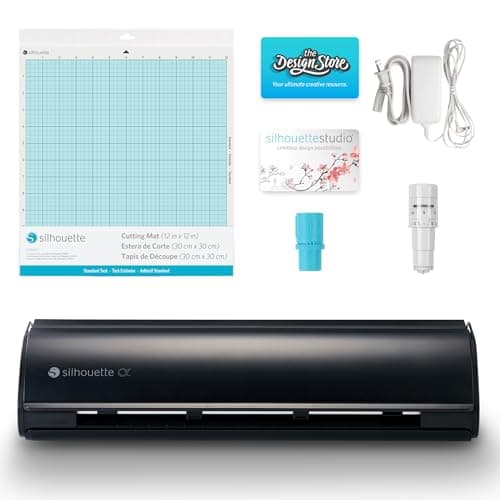
Silhouette Cameo 5 Alpha: 3 mm materials, 400 mm/s
See price on AmazonSee it on Amazon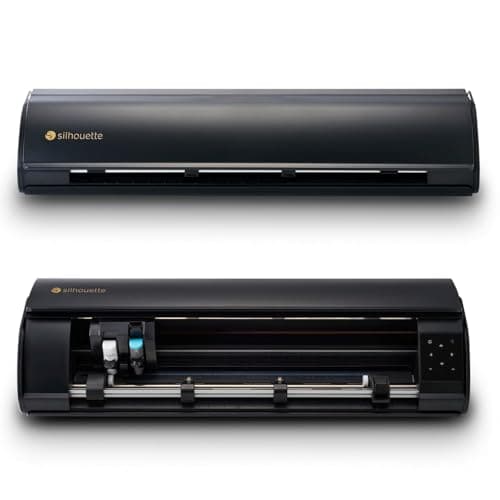
Silhouette Cameo 5 Alpha Plus: 15 in cutting width
See price on AmazonSee it on Amazon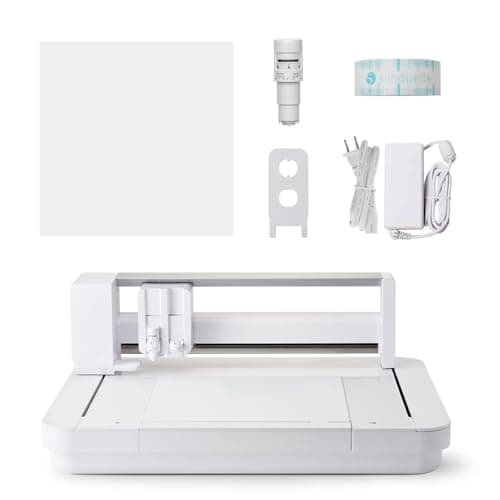
Silhouette Curio 2: 12x12 flatbed, 20 mm clearance
See price on AmazonSee it on Amazon
This page is for Cameo owners who see Offline, Not Connected or a greyed-out Send button in Silhouette Studio. The cause is almost always one of a short list: the machine is not fully powered, the cable or port is bad, Studio is not set to the right machine, Bluetooth pairing has gone stale, or Studio and the firmware are out of step. We go through the fixes in order from quickest to most involved. The steps apply to the Cameo 3, 4 and 5 and the Cameo Pro models, with notes where Bluetooth is involved.
What offline and a greyed-out Send button mean
Silhouette Studio lists each machine it can see in the Send panel. Offline means Studio knows about the machine but cannot reach it right now. Not Connected or an empty list means Studio does not see the machine at all. A greyed-out Send button is a related but different issue: Studio may see the machine but has nothing valid to send, often because no machine is selected, the design has no cut lines, or the cut style is set to No Cut.
Working out which of these you have saves time. If the machine is listed with a status, the link is there and the problem is with the job. If the machine is missing or offline, it is a connection problem.
| What you see | Likely cause | First fix |
|---|---|---|
| Machine listed as Offline | Lost USB or Bluetooth link | Power cycle machine and reconnect |
| No machine in the list | Cable, port or driver problem | Different USB port and cable, restart computer |
| Send button greyed out | No machine selected or no cut lines | Select the machine, check cut lines |
| Bluetooth pairs then drops | Stale pairing or interference | Remove pairing, connect by USB, pair again |
| Connected but will not cut | Firmware out of date or job error | Update Studio and firmware |
Quick checks first
These five steps fix a large share of offline messages because they reset the connection on both ends. If the machine now shows Ready, run a small test cut before your project.
- 1
Turn the Cameo off, wait about 30 seconds and turn it back on. Wait until it finishes its startup movement before doing anything in Studio.
- 2
Check that the power adapter is firmly seated at both ends and the machine's lights or panel come on fully.
- 3
Close Studio completely and reopen it. If you have more than one copy or edition open, close them all.
- 4
Close any other cutting or vinyl software, such as Design Space or a sign program, that might be holding the USB connection.
- 5
In the Send panel, click the machine selector and pick your Cameo by name.
Fix the USB connection
USB is the most reliable link and the best way to rule problems out. Use the cable that came with the machine or a known good data cable. Some cables only carry power and will not work. Plug it straight into a port on the computer, not a hub, keyboard or monitor port. On a laptop with USB-C only, a simple adapter usually works, but a cheap or damaged adapter is a common cause of dropouts.
Try a different port, then a different cable. If the machine appears with one cable and not another, the cable was the problem. On Windows, check Device Manager while plugging the machine in. If an unknown device appears, reinstall Silhouette Studio so it can install the driver again. On a Mac, check that macOS has not blocked a system extension or permission during install.
Restart the computer after any driver or Studio reinstall. Many connection problems disappear after a full restart because the USB stack and drivers reload.
Fix Bluetooth connection problems
Cameo models with Bluetooth can cut wirelessly, but Bluetooth is more sensitive to distance, other devices and stale pairings. If the machine pairs and then drops, or shows offline over Bluetooth, remove the Cameo from your computer's Bluetooth device list, connect by USB once to confirm it works, then pair again from Studio's machine list.
Keep the computer within a few feet of the machine with nothing metal between them. Turn off Bluetooth on other nearby devices you are not using. If Bluetooth keeps failing but USB works every time, simply cut over USB. There is no difference in cut quality.
Note.Do not unplug the machine or close Studio during a firmware update. An interrupted update can leave the machine unable to connect until Silhouette support helps you recover it.
Update Silhouette Studio and the firmware
Newer machines need a recent version of Studio, and an older machine may need a firmware update before a new Studio release talks to it properly. In Studio, check for updates from the Help menu, or download the current version from Silhouette America's site. With the machine connected by USB, Studio will offer a firmware update when one is needed. Let it finish, then power cycle the machine.
If the problem started right after a Studio update, a reinstall usually fixes it. Uninstall Studio, restart, then install the latest version fresh. Your library is stored with your account and local files, but back up any designs you saved outside the library first.
When Send is greyed out
If the machine shows Ready but you cannot send, check the job. In the Send panel, make sure your Cameo is selected, a material is chosen and the action is set to Cut. Select your design and look at the cut lines: shapes with no cut style, or a traced image without a trace line, have nothing to cut. Imported images need to be traced first.
Also check that the design sits inside the cut area shown on the page. Anything outside the red border will not cut. If you use roll feed, choose the roll option in page setup so the cut area matches what is loaded.
When to contact Silhouette support
If the machine is not seen on two different computers with two cables, or it powers on but never finishes its startup movement, the problem is likely in the machine. Contact Silhouette America support with your serial number and a short description of what you tried. If the Cameo is old and out of warranty, our best Silhouette Cameo guide and Cricut machine guide cover current replacements. For cutting problems once connected, see Silhouette Cameo not cutting.
Frequently asked questions
Why does my Cameo say offline when it is plugged in? Studio cannot reach it. Power cycle the machine, reconnect USB directly to the computer, close other cutting software and select the machine in the Send panel.
Can I use a phone charger cable? Only if it is a data cable. Many charging cables carry power only, and the computer will never see the machine through them.
Does Bluetooth cut slower or worse than USB? No. The cut is done by the machine either way. Bluetooth is just more likely to drop the connection, so USB is better when you have trouble.
Why is Send greyed out when the machine is Ready? Usually there are no cut lines in the design or the cut style is off. Select the design, set a cut style, and make sure it sits inside the cut area.
What you need for this
- See price on AmazonAmazon
Silhouette Cameo 5 Alpha: materials up to 3 mm
 See price on AmazonAmazon
Cricut Explore 5: scores and writes, 12 in width
From Best Cricut machines, from Joy 2 and Joy Xtra to Maker 5